

Triggers
Webhook
Realtime. Synclify detects a source change and runs immediately. On for every connection, every plan.
Scheduled
Polling fallback, if you configured one. Minimum interval 5 minutes.
Manual
You click Sync now.
Sync now
Available only when the connection isactive.
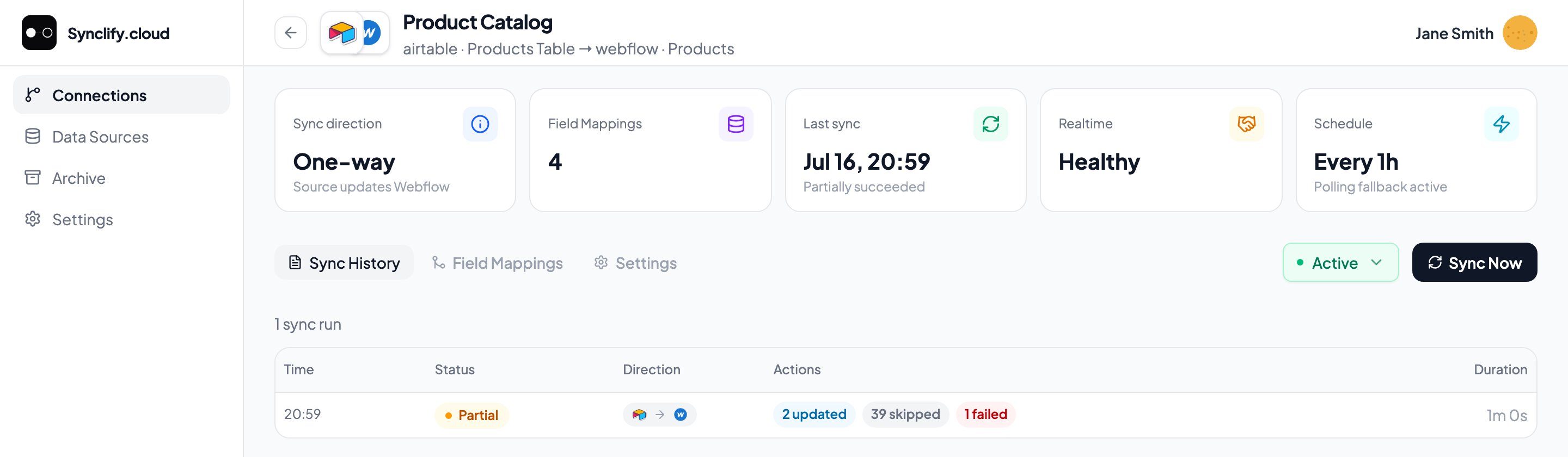
Sync now sits in the connection header, beside the status dropdown.
“Connection is not active — Approve and activate the latest draft before syncing.”You have a pending draft. Finish review and approve first.
Choosing a direction
Sync now does not guess. It opens Choose sync direction — “Select which way data should move between and .”
Only the lanes where mapped fields can actually write are offered. On a one-way connection there is nothing to choose; on a two-way connection where every field is Airtable owns, the reverse lane is not shown, because it would do nothing.
This is a run-time choice and it does not change the connection. Sending one manual run in the reverse direction does not make the connection two-way — see the direction you actually get.
The five phases
Manual runs open a live drawer that tracks progress, refreshing roughly every second and a half.1
Fetch source
Read the current state of the Airtable table.
2
Diff records
Compare against the last known state and against Webflow. Decide what to create, update, delete, and skip.
3
Write to Webflow
Apply the changes to CMS items.
4
Publish
If auto-publish is on, push items live. If off, they remain as staged changes in Webflow.
5
Done
Final counts written to history.
Cancelling
The drawer has a cancel button. Cancelling stops the run. Records already written stay written — cancel is a stop, not a rollback.Confirm publish
If conflicts surface after the write phase, the drawer asks you to Confirm publish before it proceeds. Resolve them, then continue. See Conflicts.Realtime health
The connection detail page shows a Realtime stat. The three you will see most:
Broken webhooks are repaired automatically — the panel only appears for the cases that need a person. The full state table, the repair flow, and the account-level check live on Realtime health.
Why a record was skipped
Skips are normal and usually mean nothing needs doing:- Nothing changed since the last sync.
- The field’s owner is the other side (per-field ownership).
- The item was marked keep untouched during guided setup — a Webflow item with no source row.