

Auto-mapping
When you land on the mapping step, Synclify matches source columns to Webflow fields by name and known aliases. It takes a second or two. Auto-mapping is a starting point, not an answer. Always review it. It matches on names, so two similarly-named fields can get crossed.The ID field
Exactly one mapped pair must be marked Use as ID field. Synclify uses it to decide whether an Airtable row and a Webflow item are the same record. Synclify preselectsslug, name, or title when one exists.
Pick a column that is unique per row and doesn’t get rewritten. Changing an identity value in the source makes Synclify treat the row as a new record — it loses track of the existing Webflow item.
Identity-mapped fields have their direction locked.
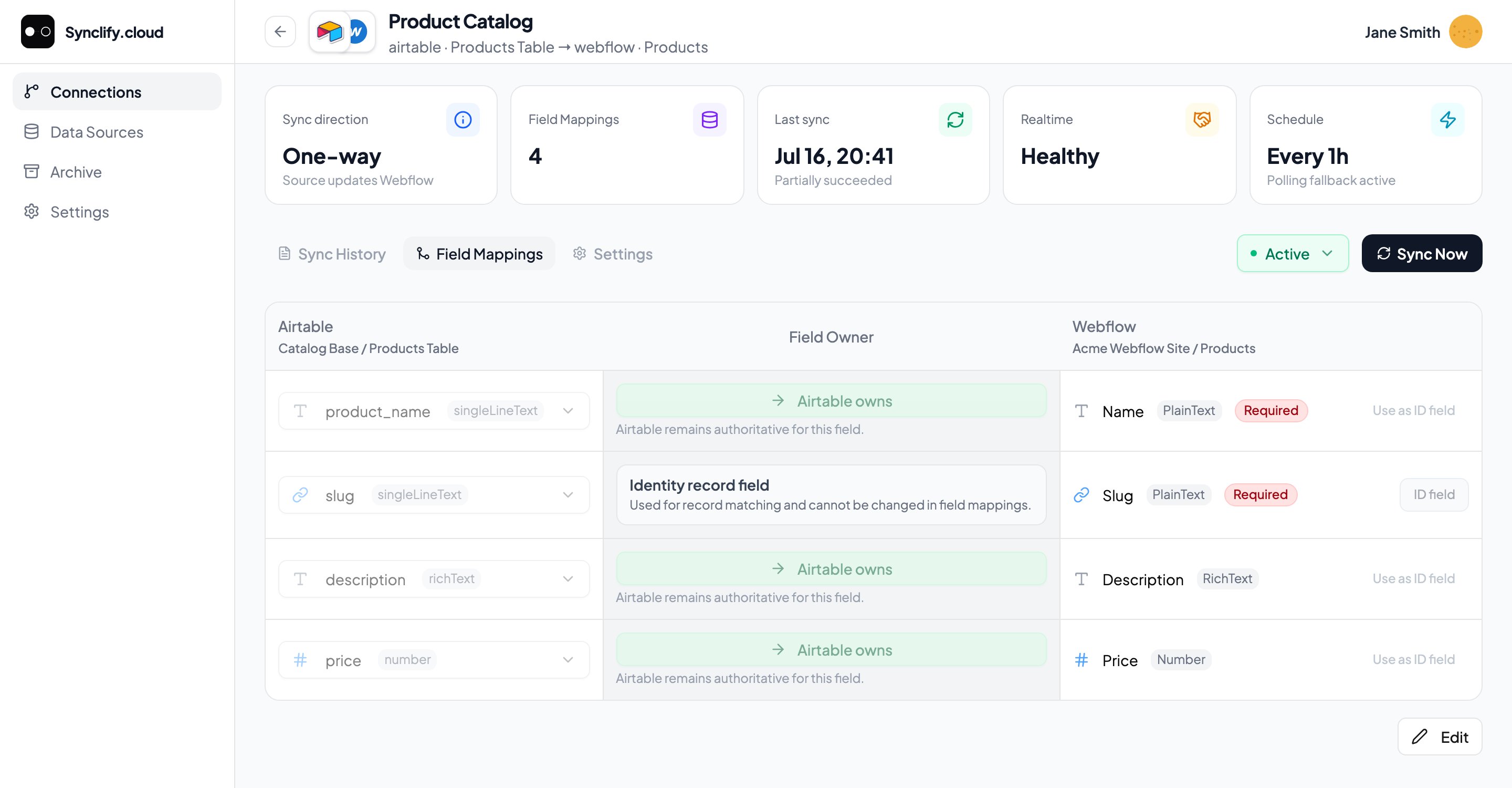
Each pair shows its source column, its Field Owner, and the Webflow field. Here slug is the ID field, so its direction is locked.
Type compatibility
Synclify sorts field types into four families and refuses to map across them:
Mapping a text column into a number field blocks Continue.
Fix a mismatch by remapping to a compatible field, or by changing the column type in Airtable.
Field compatibility reference
The full table of which Airtable columns map to each Webflow field type — plus images, references, and columns that don’t map.
Adding and removing fields
Add a mapping for any source column that auto-mapping missed. Remove any mapping you don’t want synced — an internal Airtable column, a formula field, a notes column.Per-field direction (two-way only)
On a two-way connection, each mapped field has its own direction. Click the toggle beside a field to cycle through:Airtable owns
Airtable owns
Source writes, Webflow doesn’t. Webflow edits to this field are discarded on the next sync.
Webflow owns
Webflow owns
Webflow writes, source doesn’t. The column is read but never applied.
Two Way
Two Way
Either side writes. Simultaneous edits to the same record raise a conflict.
slugis always Airtable owns. Webflow derives and validates slugs; two writers means broken URLs.- The identity field’s direction cannot be changed. A record renamed on both sides can’t be matched.