

During onboarding
New accounts are taken straight to the Webflow step.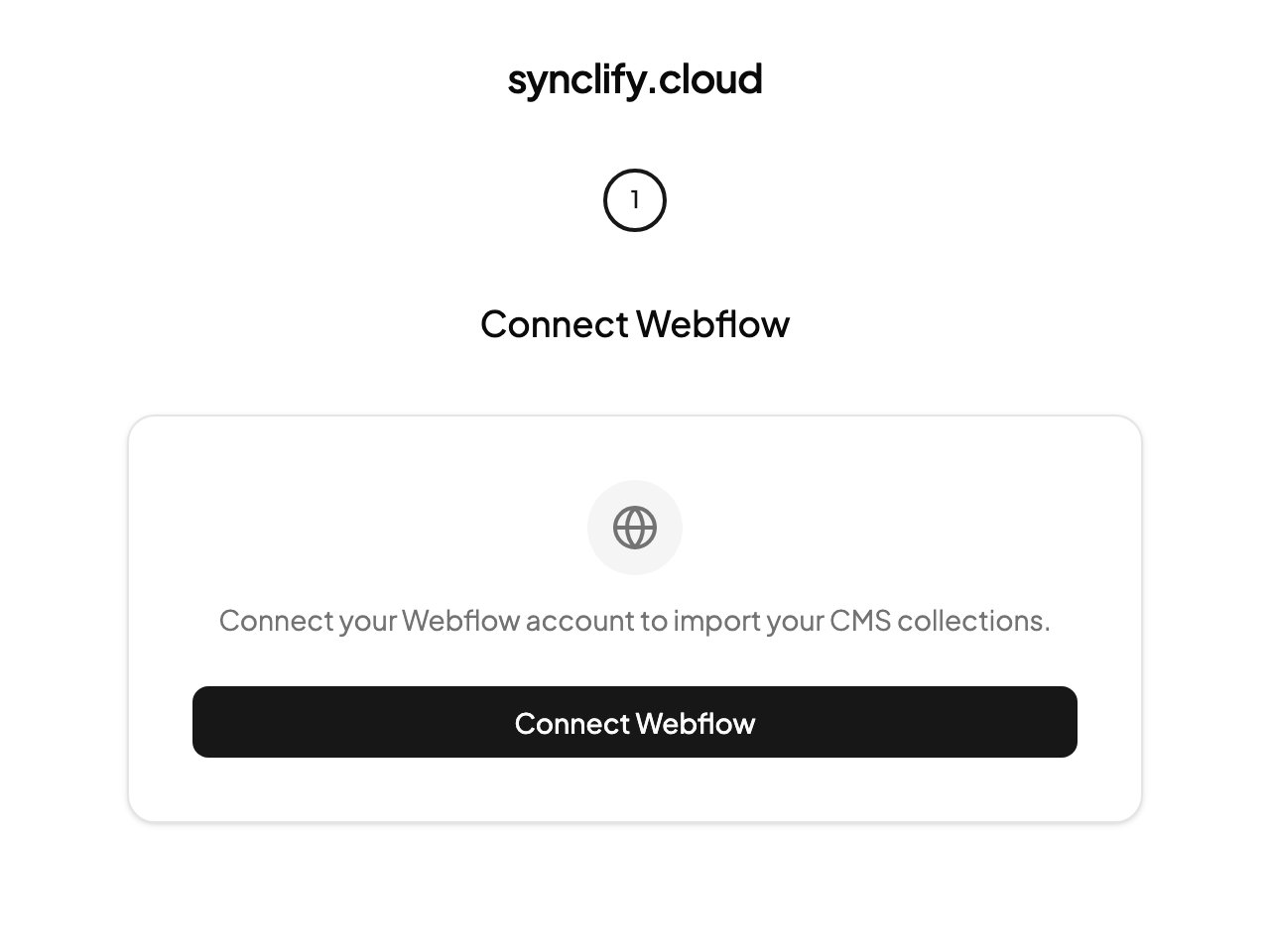
Onboarding is a single step: connect Webflow before anything else.
1
Click Connect Webflow
You are redirected to Webflow’s authorization page.
2
Approve the requested access
Synclify asks for
cms:read and cms:write. It reads your collections and their fields, and writes CMS items. It does not touch your Designer layouts, pages, or site settings.3
Select the sites to sync
Back in Synclify, tick each Webflow site you want available. At least one is required — Continue stays disabled until you pick one.
Adding Webflow later
If you skipped it, or you want to connect a second Webflow account: Data Sources → Add data source → Webflow → authorize.Connecting more sites
Selecting sites during onboarding does not permanently restrict you. Go to Data Sources, open the Webflow account, and its available sites and CMS collections are listed there.What Synclify reads
For every site you authorize, Synclify discovers:- CMS collections
- each collection’s fields, their types, and whether they are required
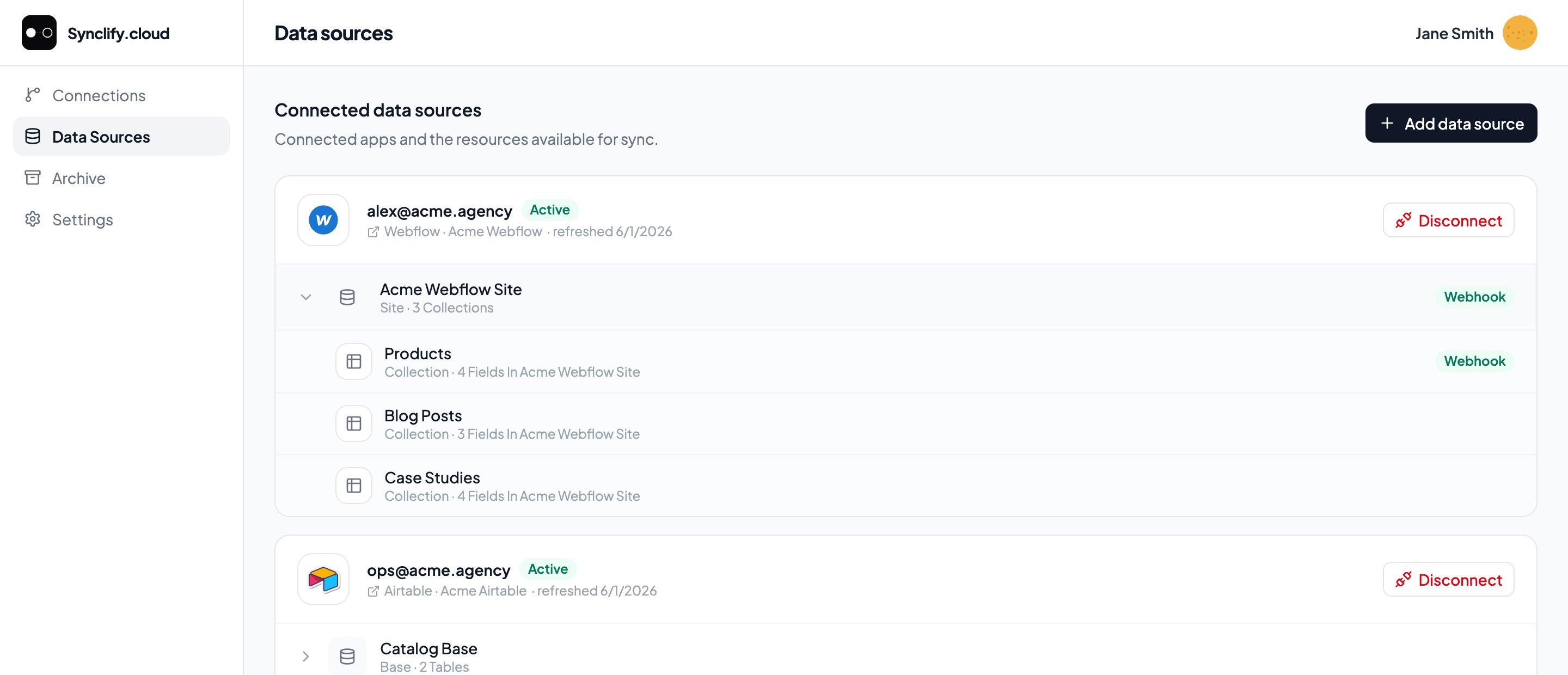
A connected Webflow account expands into its sites, and each site into its CMS collections.
Troubleshooting
Invalid OAuth state. Please try again.
Invalid OAuth state. Please try again.
A security check failed — the authorization response didn’t match the request Synclify sent. Almost always caused by opening the Webflow authorization link in a different browser or tab, or by resuming a stale page. Reload Synclify and click Connect Webflow again.
The account shows 'reauth required'
The account shows 'reauth required'
Webflow revoked or expired the token — commonly after a password change or a workspace permission change. Open Data Sources and reconnect the account. Syncs resume once it returns to
active.The account shows 'degraded'
The account shows 'degraded'
Synclify is reaching Webflow, but something is unhealthy — often rate limiting, or webhooks not delivering. Existing syncs generally keep working, possibly via polling fallback. If it persists, check the connection’s Realtime status on its detail page.
A collection doesn't appear in the destination list
A collection doesn't appear in the destination list
Either the site wasn’t authorized, or the collection already backs a live connection. A Webflow collection can only be used by one connection at a time.