> ## Documentation Index
> Fetch the complete documentation index at: https://docs.synclify.cloud/llms.txt
> Use this file to discover all available pages before exploring further.
# Create a connection
> The four-step wizard: destination, source, mapping, settings.
A connection binds one Airtable table to one Webflow CMS collection. Building one takes four steps, and then [guided setup](/connections/guided-setup) reconciles whatever already exists on both sides.
Start at **Connections** → **New connection**.
Nothing is written to Webflow during the wizard. The connection is created as a **draft** and stays inert until you approve the first preview.
## Step 1 — Destination
Pick the Webflow site, then the CMS collection to sync into.
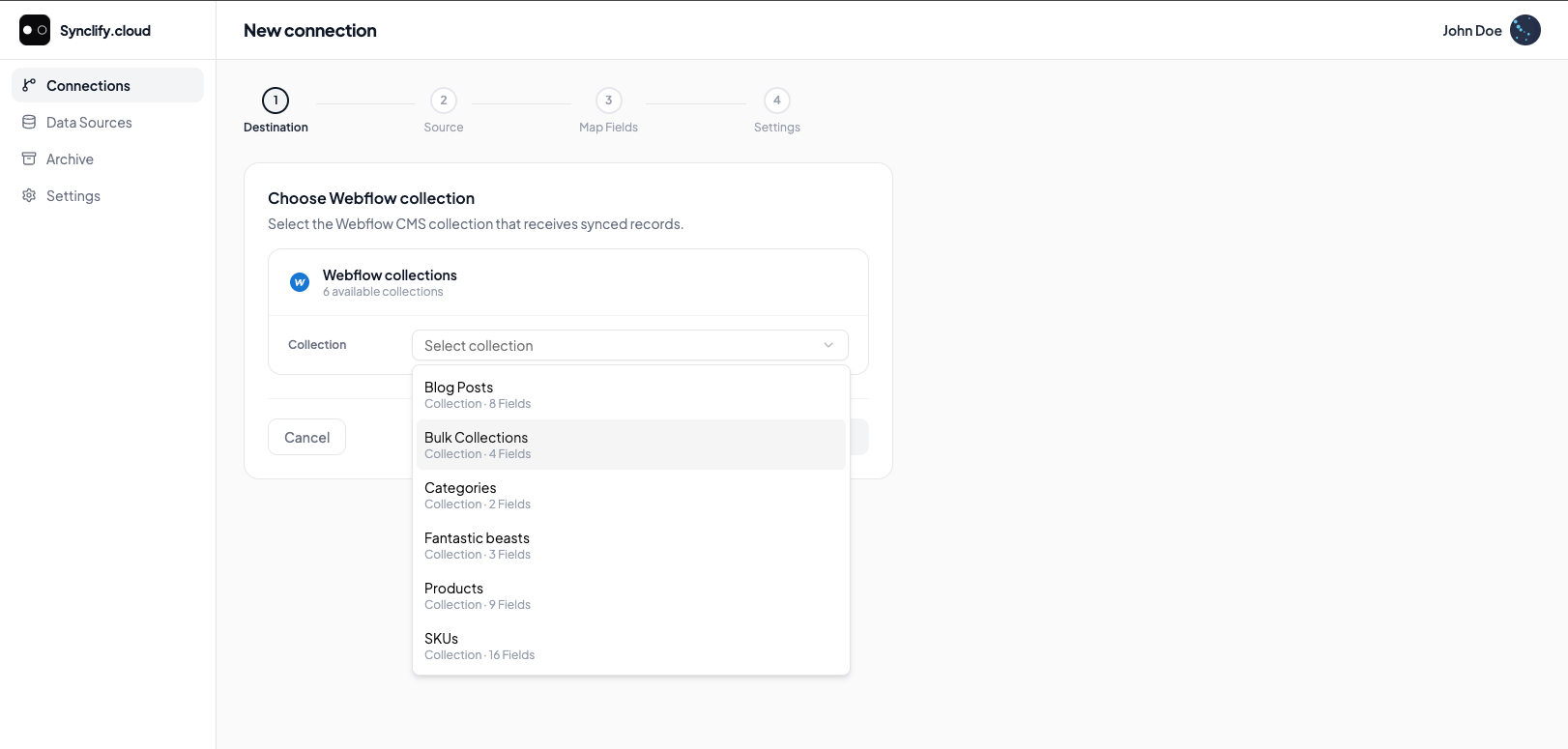 **Webflow collection already connected.** A collection can back only one live connection. If it is already taken, delete the existing connection for that collection before creating another.
Choose the destination first because it determines the field list you'll map into — including which fields Webflow marks required.
## Step 2 — Source
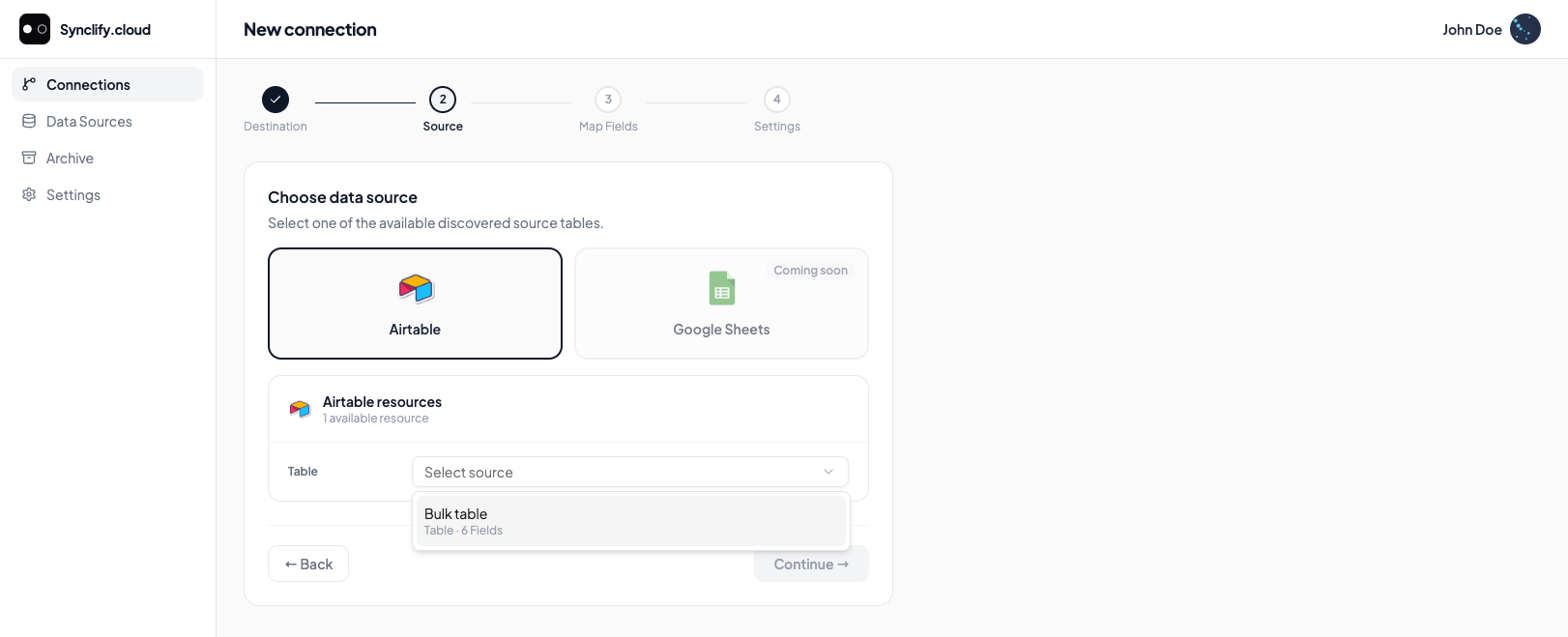
Pick the provider, then the specific resource.
* **Airtable** — choose a base, then a table.
* **Google Sheets** — visible but disabled, marked **Coming soon**.
**Webflow collection already connected.** A collection can back only one live connection. If it is already taken, delete the existing connection for that collection before creating another.
Choose the destination first because it determines the field list you'll map into — including which fields Webflow marks required.
## Step 2 — Source
Pick the provider, then the specific resource.
* **Airtable** — choose a base, then a table.
* **Google Sheets** — visible but disabled, marked **Coming soon**.
 If your Airtable account isn't listed, connect it first from [Data Sources](/data-sources/connect-airtable).
## Step 3 — Map fields
Synclify auto-maps on entry, matching source column names to Webflow field names and known aliases. It takes a moment.
If your Airtable account isn't listed, connect it first from [Data Sources](/data-sources/connect-airtable).
## Step 3 — Map fields
Synclify auto-maps on entry, matching source column names to Webflow field names and known aliases. It takes a moment.
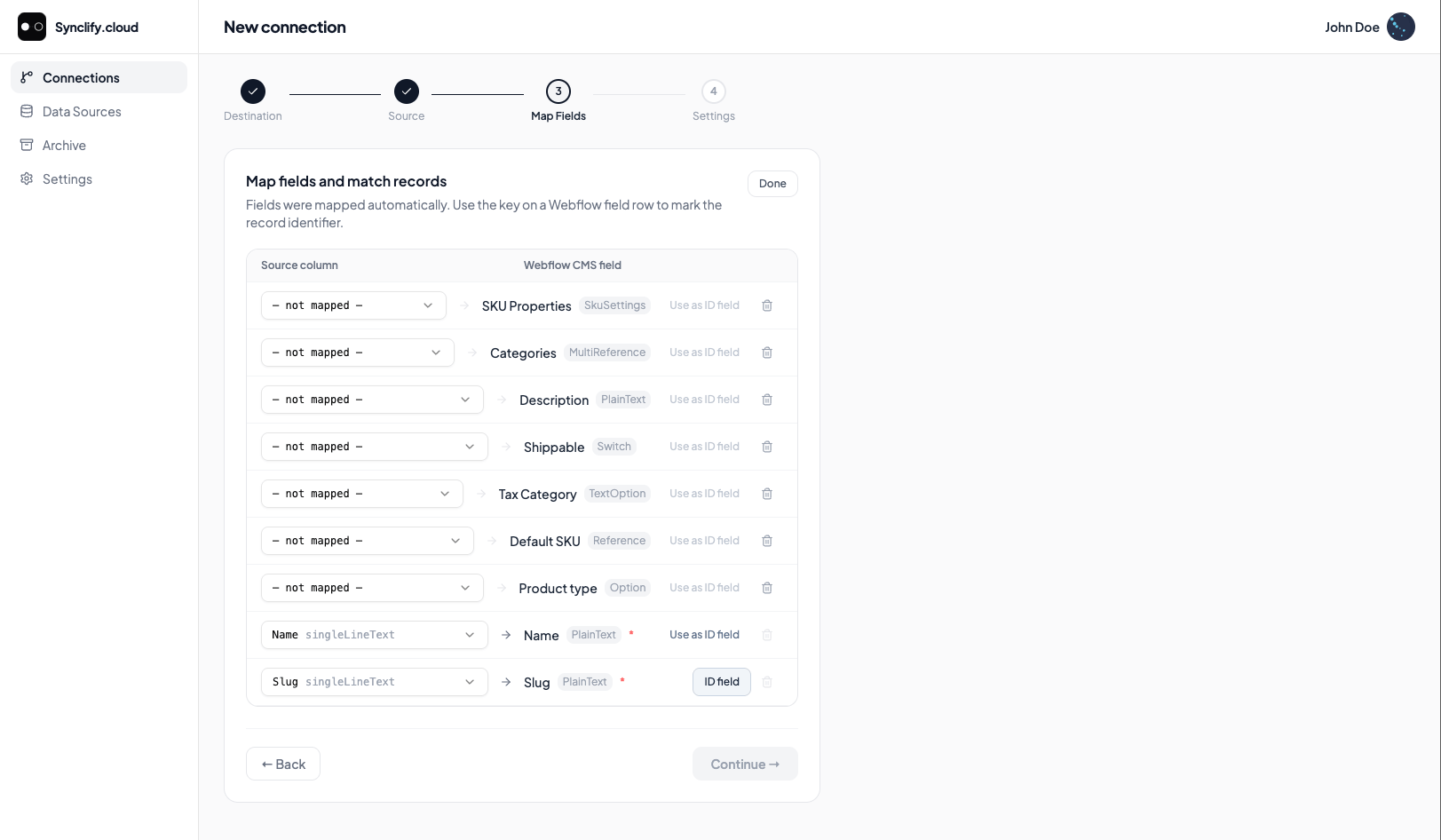 Then you:
* Review each mapped pair and correct the wrong ones.
* Set the **ID field** — required.
* Add mappings for columns auto-mapping missed, and remove ones you don't want synced.
Type mismatches across families (text, number, boolean, date/time) block **Continue**. Required Webflow fields cannot be removed.
This step has enough depth to deserve its own page: [Field mapping](/connections/field-mapping).
## Step 4 — Settings
Then you:
* Review each mapped pair and correct the wrong ones.
* Set the **ID field** — required.
* Add mappings for columns auto-mapping missed, and remove ones you don't want synced.
Type mismatches across families (text, number, boolean, date/time) block **Continue**. Required Webflow fields cannot be removed.
This step has enough depth to deserve its own page: [Field mapping](/connections/field-mapping).
## Step 4 — Settings
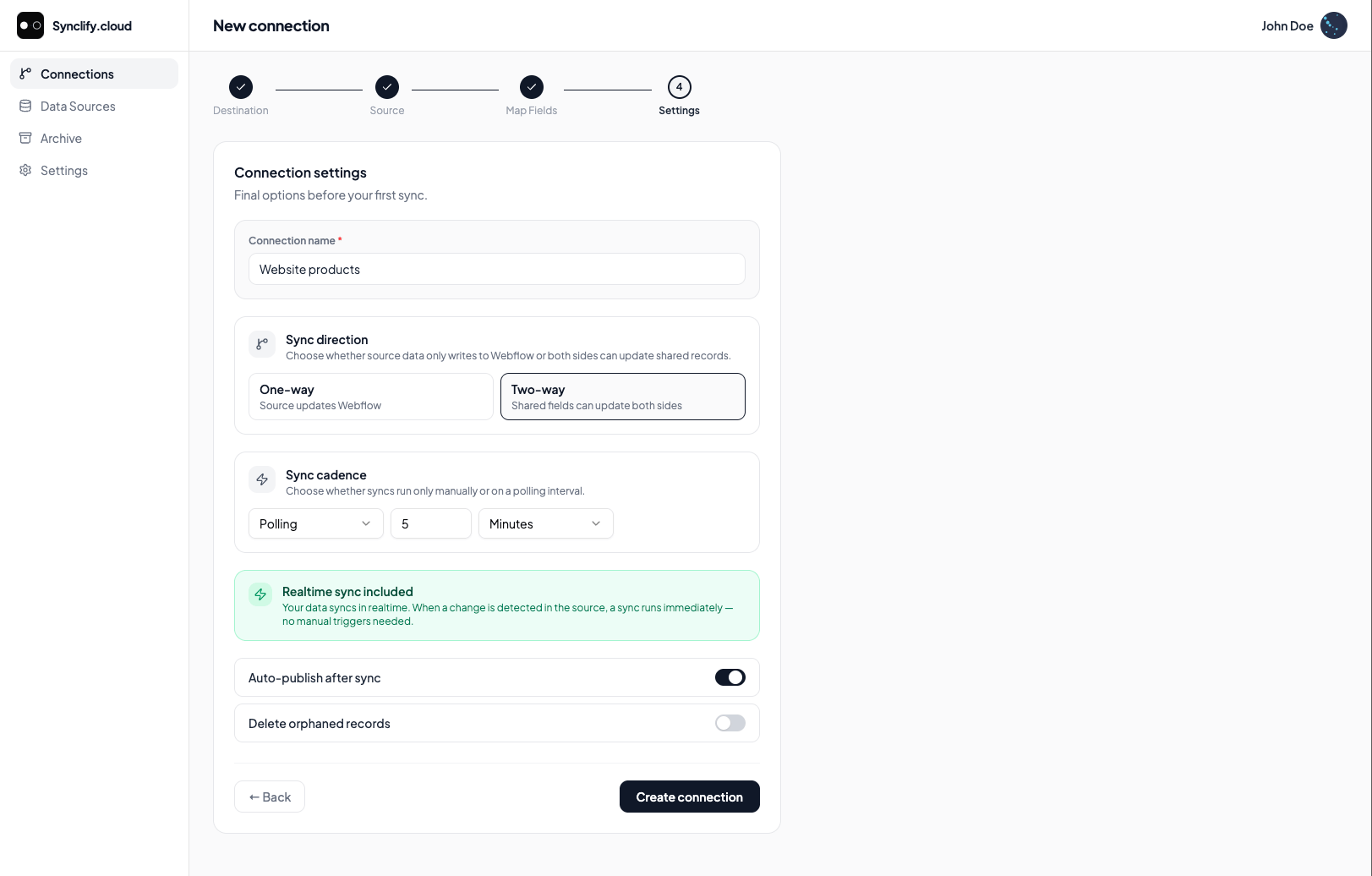 How the connection appears in lists, history, and the delete confirmation. Use something you'd recognize under pressure — `Blog posts → Webflow`, not `Connection 3`.
**One-way** (`Source updates Webflow`) — Airtable is the source of truth; Webflow edits to mapped fields are overwritten.
**Two-way** (`Shared fields can update both sides`) — edits flow both ways, and you get [per-field ownership](/how-synclify-works#per-field-ownership).
**Manual** — syncs only when you click **Sync now**.
**Polling** — a fallback scan every N minutes, hours, or days.
Realtime sync runs regardless of this setting. Polling exists to catch what webhooks miss.
On: synced items are published live. Off: they land in Webflow as staged changes for someone to publish by hand.
Off: a Webflow item whose source row disappeared is left alone.
On: it is **permanently deleted** from Webflow.
**Minimum poll interval is 5 minutes.** Anything shorter is rejected: *"Minimum poll interval is 5 minutes to avoid rate-limit issues."* Tighter polling gets you rate-limited by Airtable and Webflow, which makes syncs slower, not faster. Realtime already covers the sub-minute case.
**Delete orphaned records is destructive and permanent.** A source row deleted by accident — or an identity value someone renamed — will delete the matching Webflow item on the next sync. Leave this off unless deletions in the source genuinely mean "unpublish from the site."
## Leaving mid-wizard
Your progress is saved as you go, and reloading the page resumes where you were. But navigating away deliberately prompts:
> **Leave connection setup?** Your setup will be discarded and you'll have to start over.
## After the wizard
Synclify creates the draft and immediately starts [guided setup](/connections/guided-setup) — pairing existing records, collecting your decisions about unmatched ones, resolving conflicts, and previewing the first sync before anything is written.
How the connection appears in lists, history, and the delete confirmation. Use something you'd recognize under pressure — `Blog posts → Webflow`, not `Connection 3`.
**One-way** (`Source updates Webflow`) — Airtable is the source of truth; Webflow edits to mapped fields are overwritten.
**Two-way** (`Shared fields can update both sides`) — edits flow both ways, and you get [per-field ownership](/how-synclify-works#per-field-ownership).
**Manual** — syncs only when you click **Sync now**.
**Polling** — a fallback scan every N minutes, hours, or days.
Realtime sync runs regardless of this setting. Polling exists to catch what webhooks miss.
On: synced items are published live. Off: they land in Webflow as staged changes for someone to publish by hand.
Off: a Webflow item whose source row disappeared is left alone.
On: it is **permanently deleted** from Webflow.
**Minimum poll interval is 5 minutes.** Anything shorter is rejected: *"Minimum poll interval is 5 minutes to avoid rate-limit issues."* Tighter polling gets you rate-limited by Airtable and Webflow, which makes syncs slower, not faster. Realtime already covers the sub-minute case.
**Delete orphaned records is destructive and permanent.** A source row deleted by accident — or an identity value someone renamed — will delete the matching Webflow item on the next sync. Leave this off unless deletions in the source genuinely mean "unpublish from the site."
## Leaving mid-wizard
Your progress is saved as you go, and reloading the page resumes where you were. But navigating away deliberately prompts:
> **Leave connection setup?** Your setup will be discarded and you'll have to start over.
## After the wizard
Synclify creates the draft and immediately starts [guided setup](/connections/guided-setup) — pairing existing records, collecting your decisions about unmatched ones, resolving conflicts, and previewing the first sync before anything is written.